Mastering Mobile Payments: Huawei Pay, Swoo Pay, and Belcart Pay in Belarus
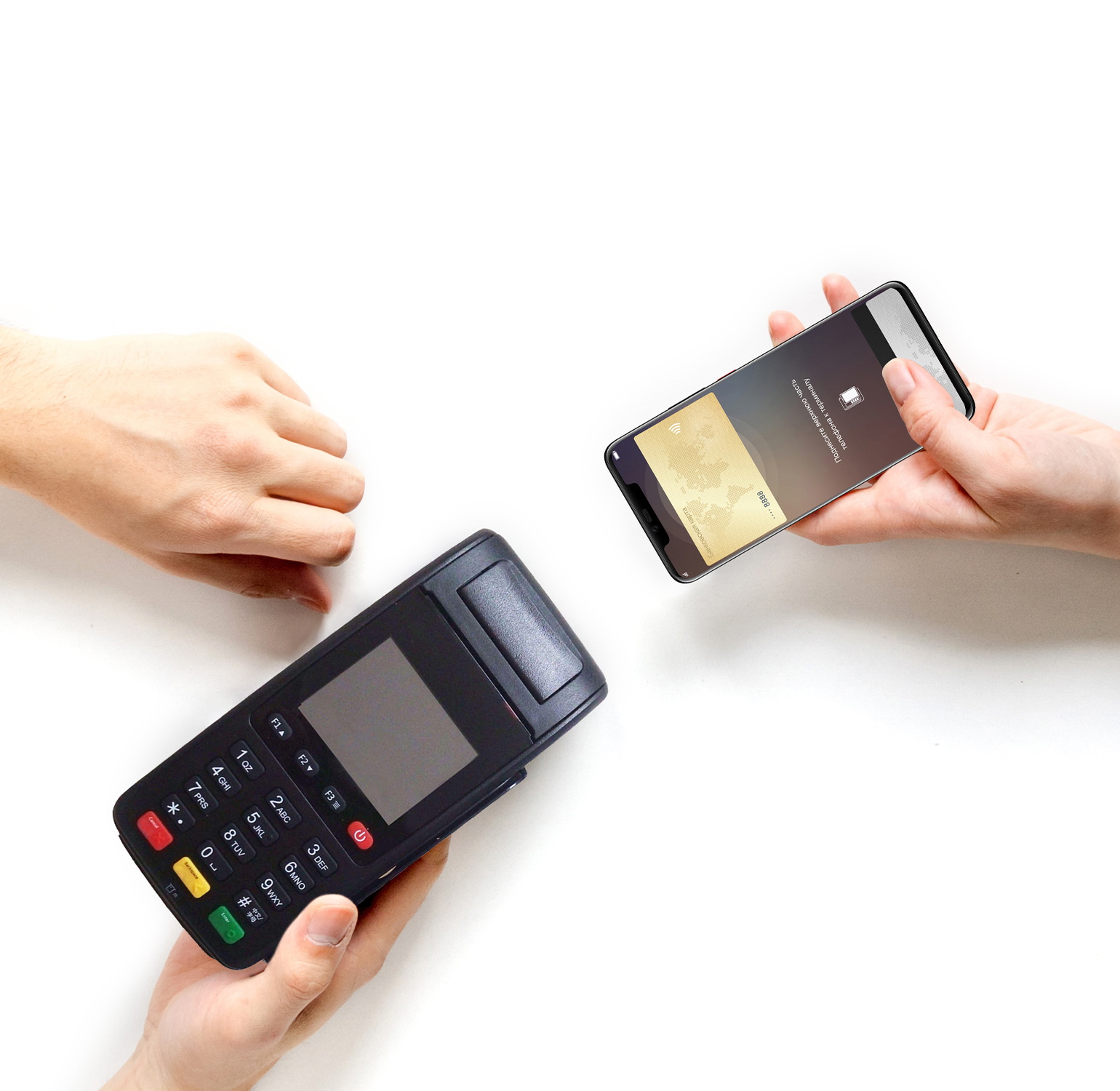
Mastering Mobile Payments: Huawei Pay, Swoo Pay, and Belcart Pay in Belarus
Paying for purchases without cash or cards has become simpler than ever. Following the launch of Belcart Pay and Swoo Pay, Belarus has introduced Huawei Pay. These services are compatible with Huawei smartphones, offering similar functionalities but differing in their payment systems. Let’s explore how to set up and use these convenient services.
The Rise of Smartphone Payments
The technology for paying with smartphones is becoming increasingly familiar. Although it hasn’t yet reached the popularity of plastic cards, progress is steadily being made. More and more Belarusians are using gadgets for payments. Over the past year, the number of such services has grown, though the choice largely depends on the specific features of the card. Huawei Pay is compatible with the international UnionPay system, Swoo Pay with Mastercard and Maestro, and Belcart Pay with Belcart and Belcart-Maestro. All three applications can be found in the AppGallery along with mobile banking apps and other Belarusian services.
Huawei Pay: Features and Functionality
Huawei Pay has recently entered the Belarusian market, allowing users to make payments with their smartphones in stores, cafes, restaurants, pharmacies, and beauty salons—anywhere with terminals supporting the UnionPay payment system. This system operates not only in Belarus but also in other countries, particularly in Southeast Asia and China, where it is widely used. Huawei Pay is also functional in Russia, making it a convenient option for cashless payments during travels or business trips to neighboring countries.
Huawei smartphone owners with the proprietary EMUI 12 shell and NFC technology support can use this service. This includes both budget and flagship models, as well as recent releases. Huawei smartwatches may also support the service, but this feature will be available in Belarus later.
Payment Methods and Supported Cards
Payments through Huawei Pay are processed via the UnionPay payment system, requiring a card issued on this platform. In Belarus, such cards can be obtained from Belarusbank, which already collaborates with the service. Other banks are expected to join soon. UnionPay cards issued by Belarusbank are valid for 4 years and come in four currency options: Belarusian rubles, Russian rubles, US dollars, or yuan. This flexibility allows for transactions both domestically and internationally.
Paying with a smartphone is secure, as all transactions are well-protected. The service does not store card data on the device or transmit it to the seller. Instead, it uses a token—a digital equivalent of the card—transmitted in encrypted form. Additionally, each transaction requires entering a PIN code or undergoing authentication via fingerprint or facial recognition. For larger amounts, extra verification is required.
Setting Up Huawei Pay
Setting up Huawei Pay is a straightforward process that takes just a few minutes. Here’s a step-by-step guide:
- Install or Open the Huawei Wallet App: Find the Huawei Wallet app, open it, and update it to the latest version if necessary. Accept the user agreement and, if desired, allow the app to enable NFC automatically when launched.
- Initial Setup: Upon first use, the app will ask for permission to use it for contactless payments. Grant the necessary permissions, including access to photos and videos for scanning the card, and access to photos and multimedia.
- Add a Bank Card: Click on the “+” icon in the “Bank Cards” section and select “Add.” Scan the card or enter its details manually. Set a PIN code and choose a payment confirmation method, then complete the authorization by receiving and entering an SMS code.
- Add Loyalty Cards (Optional): Select “Loyalty Cards,” click on the “+” icon, and scan the card or enter its details manually. Enter the company name and click “Done.”
- Manage Cards: Click on the three dots in the upper right corner to delete or modify a card. The help section provides solutions for any issues encountered.
Once set up, you can immediately start paying for purchases without a card or cash. Simply hold the back of your phone to the payment terminal and confirm the card selection. The process is instant and does not require an internet connection.
Swoo Pay: Features and Usage
The Swoo app is designed for payments using gadgets. In Belarus, it works with Mastercard payment system cards and is compatible with Huawei smartphones running Android with the proprietary EMUI shell. An built-in NFC module, present in most models, is also required.
Swoo Pay operates like other contactless payment apps: simply hold your smartphone near a contactless terminal. Payments can be made in various establishments, from stores to cinemas.
The service supports cards from many Belarusian banks, including Alfa-Bank, Belagroprombank, Belgazprombank, Belarusbank, BNB Bank, BSB Bank, MTBank, Priorbank, and StatusBank.
The app also allows adding loyalty cards from retail chains and documents for convenience. However, its primary function is facilitating gadget payments.
Installing and Using Swoo Pay
The “Swoo: Digital Wallet” app can be installed in three simple steps:
- Find and Install the App: Locate the app in the AppGallery and install it.
- Initial Setup: Open the app and follow the on-screen instructions to complete the setup.
- Add a Card: Add your payment card and any loyalty cards or documents as needed.
For more detailed information, you can visit the official Swoo website.