Effortless Google Apps Installation on Your Huawei Smartphone
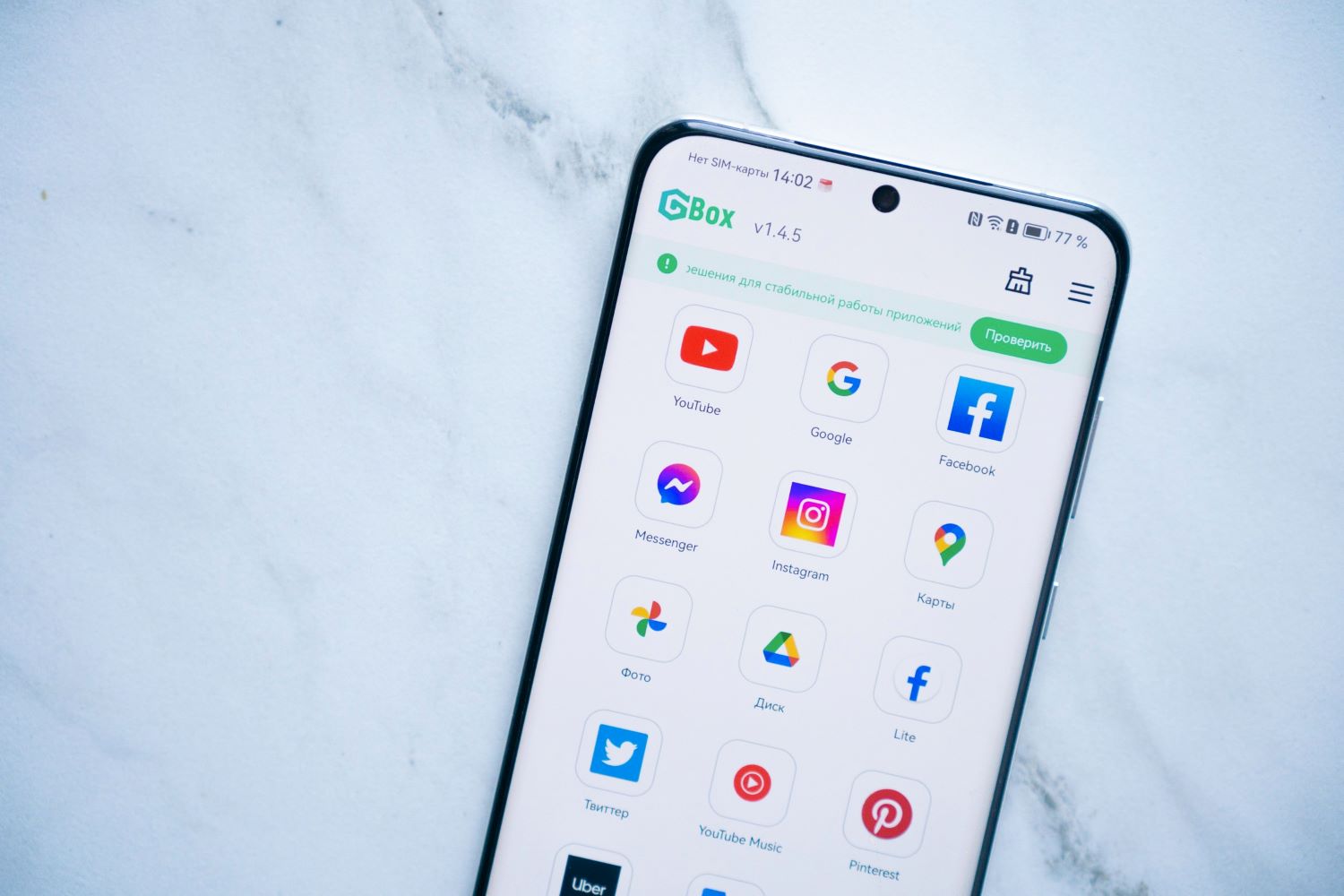
Effortless Google Apps Installation on Your Huawei Smartphone
With the latest version of the free GBox emulator program, using Google apps such as Search, Maps, and Translate on your Huawei smartphone has become easier than ever. The initial download takes just a few minutes, and after that, you can quickly install all other services directly from the AppGallery. Here’s a step-by-step guide on how to install Google Translate as your first app.
Google Translate: Search, Install, and Launch
Google Translate is one of the most popular translation services among users worldwide. It supports over 100 languages and can translate words, phrases, and entire pages. It can also work with documents and images. The translation accuracy is sufficient to understand the content of the text. It is especially convenient to use the service for browsing foreign websites when you need to understand something in Turkish, Chinese, or Arabic, for example.
The app also has other features, such as conversation translation or camera translation, where you only need to point the camera at the image with the text. Some people use the web version of the service, but it’s more convenient to use the app on your smartphone.
You can install Google Translate on your Huawei smartphone directly from the AppGallery. For this, you will need the GBox program. Here’s a step-by-step guide:
Step 1
Open AppGallery, search for “Google Translate,” and click “Install.”
Step 2
When installing Google apps for the first time, you will receive a notification about the need to download the GBox program. Agree to the installation. Google Translate will start downloading, after which the GBox installation will begin automatically, provided your smartphone is connected to a Wi-Fi network.
Step 3
Open the app, and you will receive a notification that GBox is not yet installed. Click “Install,” after which the system will redirect you to the GBox page.
Step 4
Open GBox, accept the user agreement, and grant permission to ignore battery optimization for correct operation.
Step 5
You will receive a brief instruction on using GBox. Follow the advice in step 4: click “Check” and enable the necessary permissions for GBox to work, including access to photos, multimedia, and other files.
Step 6
Open the Google Translate app. During the first use, initialization will take place. The app will prompt you to log in to your Google account to save your translation history. Choose “Log in” and wait for the connection to Google servers.
Step 7
Enter your Google account login and password. If you use it on another device, you will also need to confirm your identity.
After this, the app is ready to use. You can use it freely without any restrictions.
Other Google Services: From Photos and Documents to Maps
Now that we have installed GBox, you can download other Google apps using a simplified procedure. For example, to install Google Photos, search for the app name in the AppGallery search bar, click “Install,” download, and open it. During the first use, initialization will occur, and you will need to answer a couple of questions. After that, you can start using Google Photos. You don’t need to install GBox again (we did that earlier) or go through Google authorization again.
The process is the same for the Google Sheets app. Open AppGallery, find and install the app. When you open it, wait for the initialization to finish, grant the necessary permissions, and start working with Google Sheets.
Similarly, download Google Drive. Open the AppGallery, enter the app name, and wait for the download to complete. After initialization, Google Drive is ready to use.
Also, install Google Search. To do this, open the AppGallery, search for “Google,” select the app, download, and open it. After initialization, you can freely use the app.
Follow the same steps to install Google Docs and Google Slides. Find them in the AppGallery, download, wait for the initialization to finish, and start using them.
Finally, install Google Maps on your Huawei smartphone. To do this, open the AppGallery, enter the app name, click “Install,” and wait for the download to complete. After the initialization process, you can freely browse Google Maps.
What About Other Apps?
For more information on Huawei smartphones, visit the official Huawei website.